> ## Documentation Index
> Fetch the complete documentation index at: https://docs.minestorecms.com/llms.txt
> Use this file to discover all available pages before exploring further.
# Account Authorization
> You can enable the "Classic Auth" feature to ensure that the player has created an account on the webstore or your Minecraft server.
This feature is **optional** and can be enabled or disabled based on your requirements. This feature also good as the proof **against chargebacks** and ensures that the player has created an account on the webstore or your Minecraft server.
## Introduction
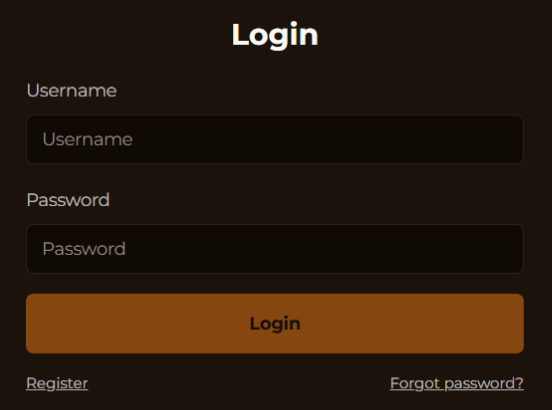
**Registration/Authorization** is a great way to verify the player's identity before logging in to the webstore. You can enable this feature to **prevent unauthorized access** to the webstore and ensure that only the player who owns the Minecraft account can log in.
 ## How to Enable Classic (Register/Authorization) Auth
1. Login to your **Admin Panel**.
2. Open the **Settings** tab in the sidebar.
3. Go to the **Settings > Authorization Settings** tab in the sidebar.
4. Select **Authorization Type** as **"Register/Authorization"**.
5. **Save Changes**.
## Syncing Minecraft Accounts with Webstore Accounts
### AuthMe Reloaded
Currently, the **Classic Auth** feature supports the **AuthMe Reloaded** plugin to sync webstore accounts with Minecraft accounts. To enable this feature, follow these steps:
1. Install the **AuthMe Reloaded** plugin on your Minecraft server.
2. Open the **AuthMe Reloaded** configuration file (`config.yml`) and set the following options:
```
DataSource:
backend: MYSQL
caching: false
mysqlHost: REPLACE_WITH_HOST_IPV4
mysqlPort: 3306
mysqlUseSSL: false
mysqlUsername: REPLACE_WITH_USERNAME
mysqlPassword: REPLACE_WITH_PASSWORD
mysqlDatabase: minestore (or your database name)
mysqlTablename: authme_accounts
```
3. Make sure to replace the `REPLACE_WITH_HOST_IPV4`, `REPLACE_WITH_USERNAME`, and `REPLACE_WITH_PASSWORD` with your MySQL database credentials.
4. Save the changes and restart your Minecraft server.
Keep in mind, you have to use the **same MySQL database** for both the **AuthMe Reloaded** plugin and **MineStoreCMS** to sync the accounts correctly.
**Note**: Make sure to open external access to your MySQL database for the **AuthMe Reloaded** plugin to connect to it. You can do this by allowing the IP address of your Minecraft server in your MySQL database settings.
### Reset Password
To let your users reset the password, you have to configure **"SMTP Settings"** in the **Settings > SMTP Settings** tab in the sidebar.
Configure the SMTP settings to allow your users receive emails for password reset, purchase notifications, and more.
## How to Enable Classic (Register/Authorization) Auth
1. Login to your **Admin Panel**.
2. Open the **Settings** tab in the sidebar.
3. Go to the **Settings > Authorization Settings** tab in the sidebar.
4. Select **Authorization Type** as **"Register/Authorization"**.
5. **Save Changes**.
## Syncing Minecraft Accounts with Webstore Accounts
### AuthMe Reloaded
Currently, the **Classic Auth** feature supports the **AuthMe Reloaded** plugin to sync webstore accounts with Minecraft accounts. To enable this feature, follow these steps:
1. Install the **AuthMe Reloaded** plugin on your Minecraft server.
2. Open the **AuthMe Reloaded** configuration file (`config.yml`) and set the following options:
```
DataSource:
backend: MYSQL
caching: false
mysqlHost: REPLACE_WITH_HOST_IPV4
mysqlPort: 3306
mysqlUseSSL: false
mysqlUsername: REPLACE_WITH_USERNAME
mysqlPassword: REPLACE_WITH_PASSWORD
mysqlDatabase: minestore (or your database name)
mysqlTablename: authme_accounts
```
3. Make sure to replace the `REPLACE_WITH_HOST_IPV4`, `REPLACE_WITH_USERNAME`, and `REPLACE_WITH_PASSWORD` with your MySQL database credentials.
4. Save the changes and restart your Minecraft server.
Keep in mind, you have to use the **same MySQL database** for both the **AuthMe Reloaded** plugin and **MineStoreCMS** to sync the accounts correctly.
**Note**: Make sure to open external access to your MySQL database for the **AuthMe Reloaded** plugin to connect to it. You can do this by allowing the IP address of your Minecraft server in your MySQL database settings.
### Reset Password
To let your users reset the password, you have to configure **"SMTP Settings"** in the **Settings > SMTP Settings** tab in the sidebar.
Configure the SMTP settings to allow your users receive emails for password reset, purchase notifications, and more.