> ## Documentation Index
> Fetch the complete documentation index at: https://docs.minestorecms.com/llms.txt
> Use this file to discover all available pages before exploring further.
# Sales
> Create and manage sales to offer global and automatic discounts for specific packages or categories.
## Introduction
**Sales** are a great way to offer global and automatic discounts to your customers. You can create sales to offer discounts on specific packages or categories. The sales will be applied automatically to the products that match the criteria.
## Creating a Sale
Go to the **Discounts > Sales** tab in the sidebar.
Click on the **"+ Create a Sale"** button.
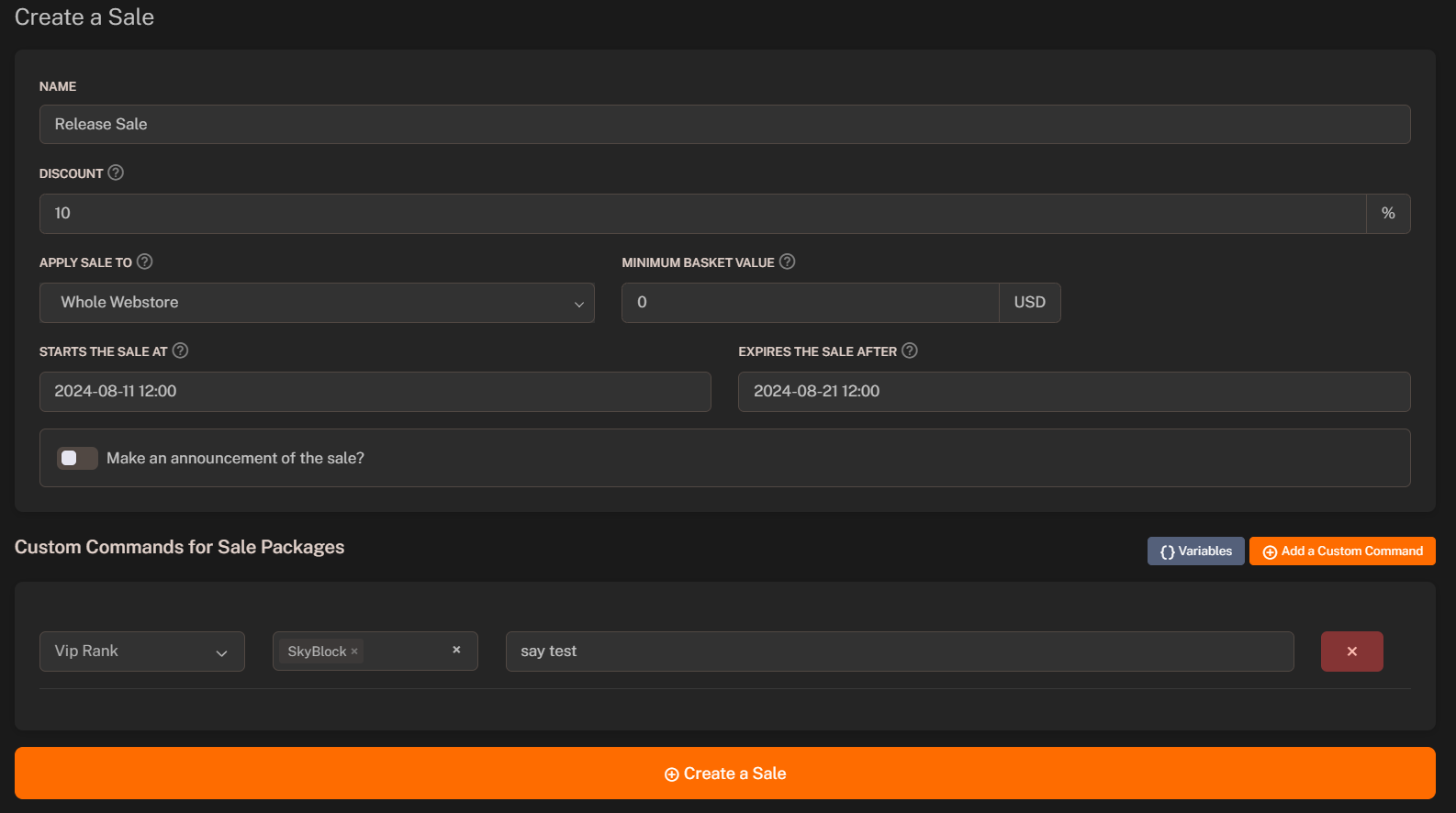
Fill in the sale details like the **name**, **discount**, **apply sale to**, **minimum basket value** and **start/end date**.
You can configure the announcement settings to display a message on the webstore when the sale is active.
You can setup global commands to execute when the sale is active. The global commands will be executed automatically with every purchase during the sale.
Click on the **"Create a Sale"** button to create the sale.
 ### Apply Sale To
You can set the **apply sale to** field to apply the sale to specific groups of products.
The coupon will be applied to the whole webstore.
The coupon will be applied to specific categories.
The coupon will be applied to specific packages.
After selecting the **apply sale to** field, you can select the **categories** or **packages** to apply the sale to.
### Minimum Basket Value
You can set the **minimum basket value** required to use the sale. The sale will be applied only if the **basket value is greater than or equal** to the **minimum basket value**.
**Default** value is `0`, so the sale **can be applied to any order**.
### Start / End Date
You can set the **start** and **end date** for the sale. The sale will be **active** between the start and end date.
The sale will be **active** based on the **Server Time** and **MySQL Time**.
## Setting Up Announcement
You can configure the announcement settings to display a message on the webstore when the sale is active.
1. Enable **"Make an announcement of the sale"** option.
2. **Enter following details**:
* **Title**: Enter the title of the announcement.
* **Content**: Enter the description of the announcement.
* **Button Text**: Enter the button text for the announcement (Optional).
* **Button URL**: Enter the button URL for the announcement (Optional).
## Adding Custom Commands
You can setup custom commands to execute when the sale is active. The custom commands will be executed automatically with every purchase during the sale.
1. Scroll down to the **Custom Commands** section.
2. Click on the **"+ Add a Custom Command"** button.
3. **Enter following details**:
* **Package**: Select the package to execute the command after purchase.
* **Servers**: Select the servers to execute the command.
* **Command**: Enter the command to execute.
This feature is useful only for **specific packages** that require additional commands to be executed after purchase. For all packages, you can use the [Global Commands](/features/global-commands) feature.
### Available Variables
| **Variable** | **Meaning of the Variable / Replaces With** |
| ---------------- | ------------------------------------------- |
| `{username}` | User nickname |
| `{package_name}` | Package name |
| `{price}` | Package price |
| `{currency}` | Currency |
| `{coupon}` | Used coupon |
| `{uuid}` | UUID (Universally Unique Identifier) |
| `{time}` | Command execution time |
| `{date}` | Command execution date |
| `{customerIP}` | Customer IP |
| `{server}` | Server name |
### Apply Sale To
You can set the **apply sale to** field to apply the sale to specific groups of products.
The coupon will be applied to the whole webstore.
The coupon will be applied to specific categories.
The coupon will be applied to specific packages.
After selecting the **apply sale to** field, you can select the **categories** or **packages** to apply the sale to.
### Minimum Basket Value
You can set the **minimum basket value** required to use the sale. The sale will be applied only if the **basket value is greater than or equal** to the **minimum basket value**.
**Default** value is `0`, so the sale **can be applied to any order**.
### Start / End Date
You can set the **start** and **end date** for the sale. The sale will be **active** between the start and end date.
The sale will be **active** based on the **Server Time** and **MySQL Time**.
## Setting Up Announcement
You can configure the announcement settings to display a message on the webstore when the sale is active.
1. Enable **"Make an announcement of the sale"** option.
2. **Enter following details**:
* **Title**: Enter the title of the announcement.
* **Content**: Enter the description of the announcement.
* **Button Text**: Enter the button text for the announcement (Optional).
* **Button URL**: Enter the button URL for the announcement (Optional).
## Adding Custom Commands
You can setup custom commands to execute when the sale is active. The custom commands will be executed automatically with every purchase during the sale.
1. Scroll down to the **Custom Commands** section.
2. Click on the **"+ Add a Custom Command"** button.
3. **Enter following details**:
* **Package**: Select the package to execute the command after purchase.
* **Servers**: Select the servers to execute the command.
* **Command**: Enter the command to execute.
This feature is useful only for **specific packages** that require additional commands to be executed after purchase. For all packages, you can use the [Global Commands](/features/global-commands) feature.
### Available Variables
| **Variable** | **Meaning of the Variable / Replaces With** |
| ---------------- | ------------------------------------------- |
| `{username}` | User nickname |
| `{package_name}` | Package name |
| `{price}` | Package price |
| `{currency}` | Currency |
| `{coupon}` | Used coupon |
| `{uuid}` | UUID (Universally Unique Identifier) |
| `{time}` | Command execution time |
| `{date}` | Command execution date |
| `{customerIP}` | Customer IP |
| `{server}` | Server name |