> ## Documentation Index
> Fetch the complete documentation index at: https://docs.minestorecms.com/llms.txt
> Use this file to discover all available pages before exploring further.
# Donation Goals
> You can create and manage donation goals to set targets and encourage donations from your customers.
## Introduction
**Donation Goals** are a great way to set targets and encourage donations from your customers. You can create **donation goals to raise funds** for a cause or charity. The donation goals will be displayed on the **donation page** of your webstore. It motivates customers to donate more and helps you achieve your fundraising targets.
 You can create **multiple donation goals** and **track the progress** of each goal. It helps you to set targets and motivate customers to donate more.
**However, you can display only one donation goal at a time on the donation page.**
## Adding Donation Goal
Go to the **Donation Goals** tab in the sidebar.
Click on the **Create a Donation Goal** button to add a new donation goal.
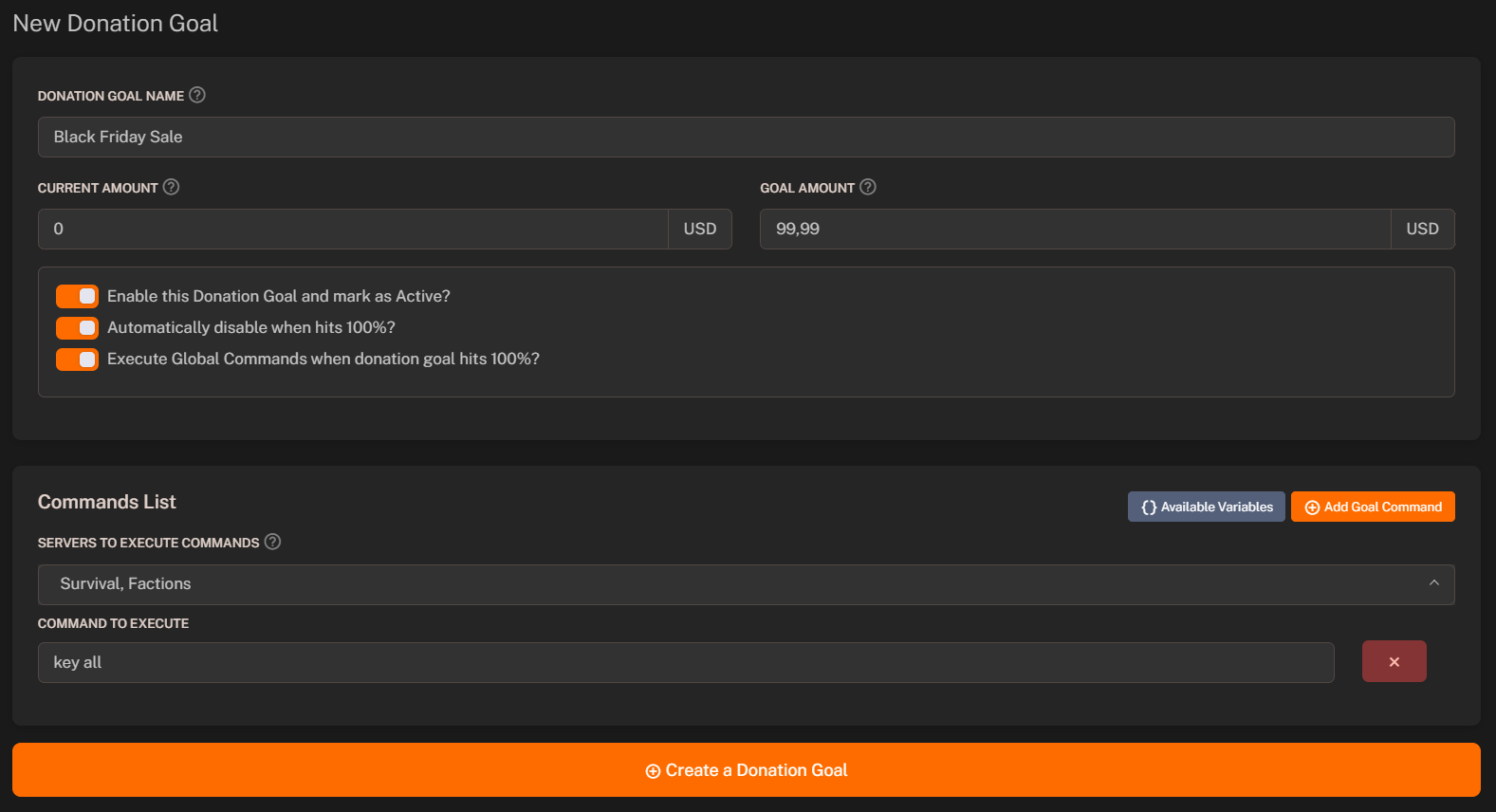
Set the **name** for the donation goal to display on the homepage.
Set the **current amount** collected for the donation goal (by default, it is set to `0`).
Set the **goal amount** to achieve for the donation goal.
Click on the **Save** button to save the donation goal.
You can create **multiple donation goals** and **track the progress** of each goal. It helps you to set targets and motivate customers to donate more.
**However, you can display only one donation goal at a time on the donation page.**
## Adding Donation Goal
Go to the **Donation Goals** tab in the sidebar.
Click on the **Create a Donation Goal** button to add a new donation goal.
Set the **name** for the donation goal to display on the homepage.
Set the **current amount** collected for the donation goal (by default, it is set to `0`).
Set the **goal amount** to achieve for the donation goal.
Click on the **Save** button to save the donation goal.
 ## Executing Global Commands when a Donation Goal is Reached
### Adding Global Commands
You can configure and execute **global commands** when a donation goal is reached. It allows you to trigger specific actions or events when a donation goal is achieved. You can set up **global commands** to send notifications, update the website, or perform any other action when a donation goal is reached.
**How to add global commands:**
1. Select **"Execute Global Commands when donation goal hits 100%"** option.
2. Select **servers** on which you want to execute the global commands.
3. Add **commands** that you want to execute when the donation goal is reached.
4. Click on the **Save** button to save the donation goal settings.
### Available Variables
| **Variable** | **Meaning of the Variable / Replaces With** |
| ----------------------- | ---------------------------------------------- |
| `{goal}` | Donation goal name |
| `{current_amount}` | Current amount |
| `{goal_amount}` | Total goal amount |
| `{reached_at}` | Goal reached date and time (YYYY-MM-DD H:i:s) |
| `{automatic_disabling}` | Is goal automatic disabling? (0 - NO, 1 - YES) |
| `{time}` | Command execution time |
| `{date}` | Command execution date |
## Executing Global Commands when a Donation Goal is Reached
### Adding Global Commands
You can configure and execute **global commands** when a donation goal is reached. It allows you to trigger specific actions or events when a donation goal is achieved. You can set up **global commands** to send notifications, update the website, or perform any other action when a donation goal is reached.
**How to add global commands:**
1. Select **"Execute Global Commands when donation goal hits 100%"** option.
2. Select **servers** on which you want to execute the global commands.
3. Add **commands** that you want to execute when the donation goal is reached.
4. Click on the **Save** button to save the donation goal settings.
### Available Variables
| **Variable** | **Meaning of the Variable / Replaces With** |
| ----------------------- | ---------------------------------------------- |
| `{goal}` | Donation goal name |
| `{current_amount}` | Current amount |
| `{goal_amount}` | Total goal amount |
| `{reached_at}` | Goal reached date and time (YYYY-MM-DD H:i:s) |
| `{automatic_disabling}` | Is goal automatic disabling? (0 - NO, 1 - YES) |
| `{time}` | Command execution time |
| `{date}` | Command execution date |