> ## Documentation Index
> Fetch the complete documentation index at: https://docs.minestorecms.com/llms.txt
> Use this file to discover all available pages before exploring further.
# IP Checking
> Learn how to enable the IP Checking module to prevent fraud by checking the IP address of the buyer.
## **Introduction**
The **IP Checking** module allows you to **validate** that the user\`s IP matches the **billing address** entered. Also, you can **block** specific countries for accessing your webstore to prevent fraud.
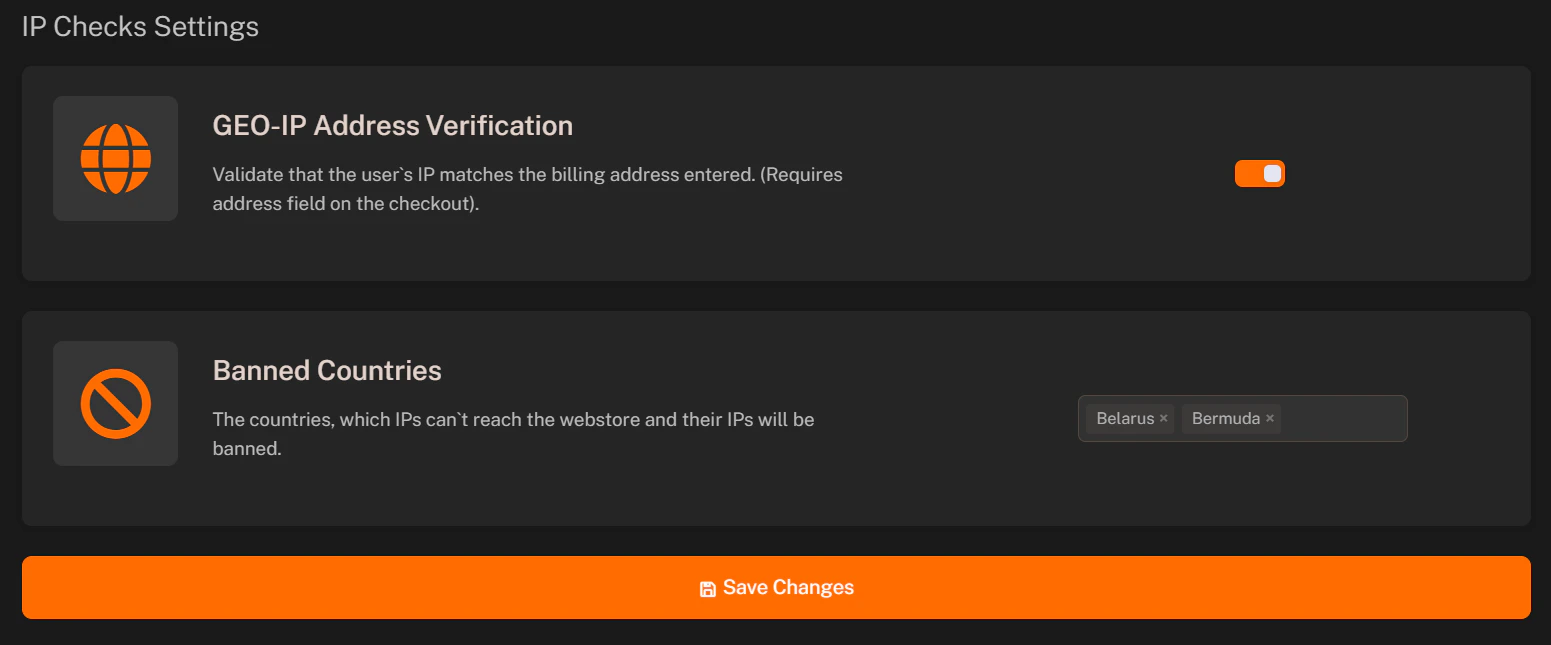 ## **Enabling IP Checking**
To enable the **IP Checking** module, follow the steps below:
1. Navigate to the **Fraud > IP Checking** tab in the **Admin Panel**.
2. Toggle the **GEO-IP Address Verification** switch to enable the module.
3. Make sure that [Collecting Data](/features/transactions/collecting-data) module is enabled to collect the IP address of the buyer.
4. **Save** the changes.
Learn how to enable the **Collecting Data** module to collect additional information during checkout.
## Blocking Specific Countries
You can block specific countries from accessing your webstore to prevent fraud. To block a country, follow the steps below:
1. Navigate to the **Fraud > IP Checking** tab in the **Admin Panel**.
2. Scroll down to the **Blocked Countries** section.
3. Select the countries you want to **block** from the **dropdown list**.
4. **Save** the changes.
**Blocked countries** will be **redirected** to the **blocked page** when they try to access your webstore.
## **Enabling IP Checking**
To enable the **IP Checking** module, follow the steps below:
1. Navigate to the **Fraud > IP Checking** tab in the **Admin Panel**.
2. Toggle the **GEO-IP Address Verification** switch to enable the module.
3. Make sure that [Collecting Data](/features/transactions/collecting-data) module is enabled to collect the IP address of the buyer.
4. **Save** the changes.
Learn how to enable the **Collecting Data** module to collect additional information during checkout.
## Blocking Specific Countries
You can block specific countries from accessing your webstore to prevent fraud. To block a country, follow the steps below:
1. Navigate to the **Fraud > IP Checking** tab in the **Admin Panel**.
2. Scroll down to the **Blocked Countries** section.
3. Select the countries you want to **block** from the **dropdown list**.
4. **Save** the changes.
**Blocked countries** will be **redirected** to the **blocked page** when they try to access your webstore.