> ## Documentation Index
> Fetch the complete documentation index at: https://docs.minestorecms.com/llms.txt
> Use this file to discover all available pages before exploring further.
# Hybrid Package
> Hybrid Packages are a combination of Gift card and Minecraft Commands packages. Learn how to create a Hybrid Package in the Admin Panel.
## **SMTP Server**
You need to have an **SMTP server** configured in the Admin Panel to send emails to customers so they can receive **gift card code**:
Configure your SMTP server to send emails to customers when they purchase a gift card or to send invoices.
## **Creating Hybrid Packages**
To create a **new hybrid package** that includes both a gift card and Minecraft commands, follow the steps below:
Navigate to the **Admin Panel**.
Click on the **Packages** tab to access the package management area.
Press the **+ Add New** button and select **Package** from the dropdown menu.
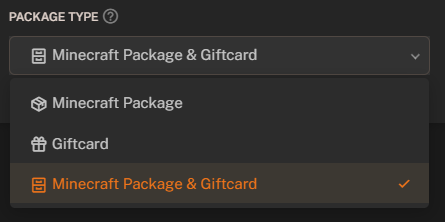
Select **"Minecraft Package & Giftcard"** package type.
Fill in the **package details**:
* **Name**: Enter the name of the package.
* **Description**: Add a description of the package (optional).
* **Image**: Upload an image for the package (optional).
* **Category**: Select the category for the package.
* **Package Type**: Select **"Gift Card"** package type.
* **Price**: Enter the price of the gift card.
* **Discount**: Specify the discount amount for the gift card (optional).
* **Minecraft Commands**: Add the Minecraft commands that will be executed when the package is purchased.
* **Gift Card Amount**: Set the value of the gift card.
Press the **"Create the Package"** button to create the new gift card package.
 ## **Gift Card Redemption**
When a customer purchases a gift card, they receive a code that can be redeemed on the webstore.
## **Gift Card Redemption**
When a customer purchases a gift card, they receive a code that can be redeemed on the webstore.