> ## Documentation Index
> Fetch the complete documentation index at: https://docs.minestorecms.com/llms.txt
> Use this file to discover all available pages before exploring further.
# Cordarium
> Cordarium is a business-free payment gateway that allows you to accept crypto payments in the easiest way possible.
## How to Configure Cordarium?
### Step 1: Getting Cordarium API Keys
1. Go to the [Cordarium](https://cordarium.com/) website.
2. **Sign up for an account** or **log in** if you already have an account.
3. Create a **webstore** on the Cordarium dashboard.
4. Select the **webstore** and go to the **Settings**.
5. Copy the **Server ID**, **Public Key**, and **Secret Key**.
6. Ensure that the **webstore** is **active**.
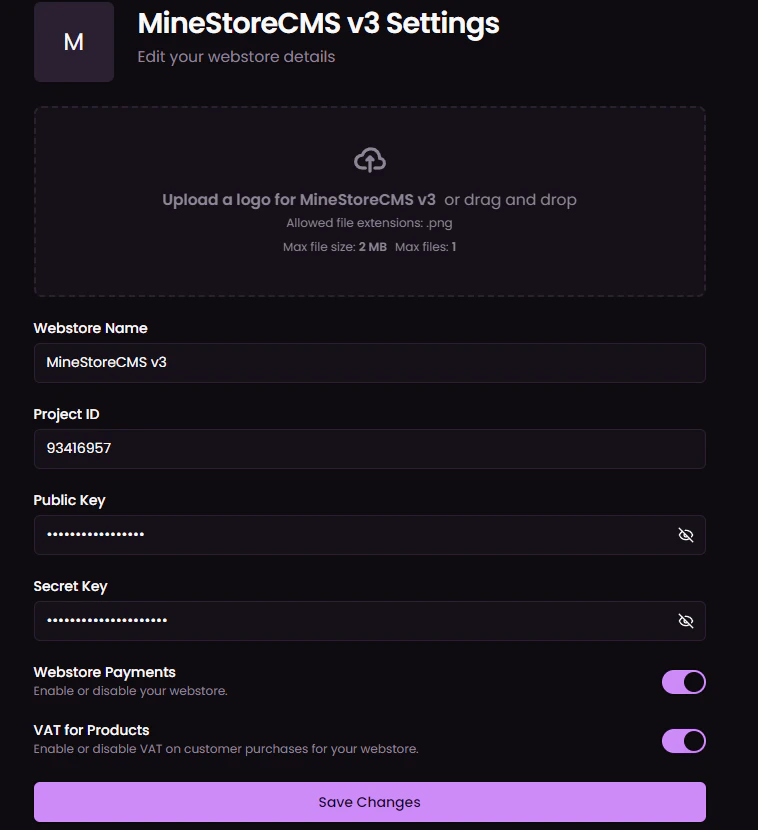 ### Step 2: Enable Cordarium Payment Gateway
1. Go to the **Settings > Payment Gateways** tab in the sidebar.
2. Scroll down to the **Cordarium** section.
3. **Enable** the **Cordarium** option.
4. Enter the **Server ID**, **Public Key**, and **Secret Key**.
5. **Save Changes**.
Crypto payments do not support **subscriptions**. You can only use the Cordarium payment gateway for **one-time purchases**.
### Step 2: Enable Cordarium Payment Gateway
1. Go to the **Settings > Payment Gateways** tab in the sidebar.
2. Scroll down to the **Cordarium** section.
3. **Enable** the **Cordarium** option.
4. Enter the **Server ID**, **Public Key**, and **Secret Key**.
5. **Save Changes**.
Crypto payments do not support **subscriptions**. You can only use the Cordarium payment gateway for **one-time purchases**.