> ## Documentation Index
> Fetch the complete documentation index at: https://docs.minestorecms.com/llms.txt
> Use this file to discover all available pages before exploring further.
# MercadoPago
> Accept payments all across Latin America and South America with MercadoPago. This payment method is perfect for Latin American and South American countries.
## How to connect MercadoPago to Webstore?
### Step 1: Get your MercadoPago API key
1. Go to [MercadoPago](https://www.mercadopago.com/) and sign in.
2. Go to [Credentials tab](https://www.mercadopago.com.br/mlb/account/credentials) (example for Brazil link).
3. Copy the `Access Token` and keep it safe.
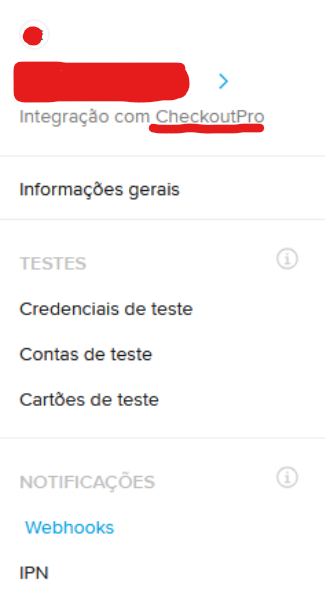
4. Configure `CheckoutPro` type of integration.
 ### Step 2: Configure Webhook
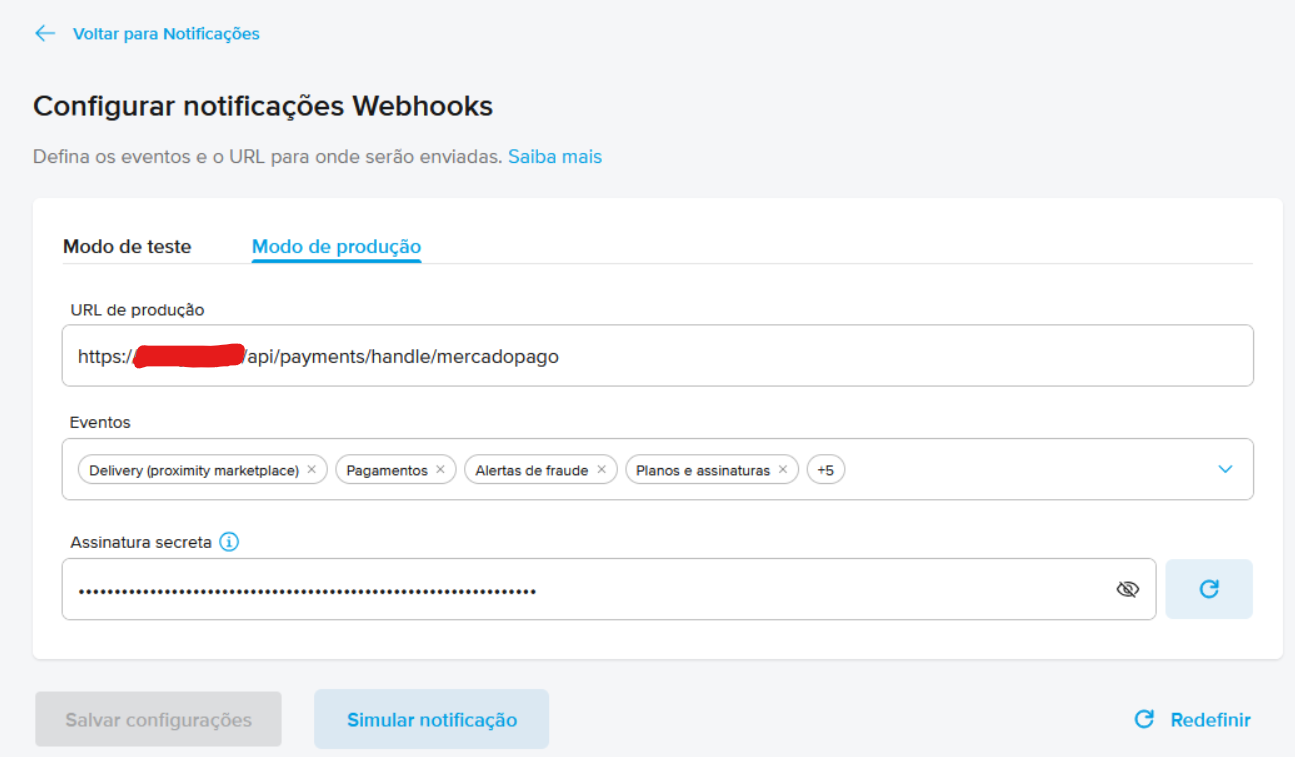
1. Go to Notifications tab in your MercadoPago account.
2. Select the `Webhooks` tab.
3. Click on `Create Webhook`.
4. Enter the `Notification URL` (i.e. `https://v3.minestorecms.com/api/payments/handle/mercadopago`).
5. Select the `All` option for `Events`.
### Step 2: Configure Webhook
1. Go to Notifications tab in your MercadoPago account.
2. Select the `Webhooks` tab.
3. Click on `Create Webhook`.
4. Enter the `Notification URL` (i.e. `https://v3.minestorecms.com/api/payments/handle/mercadopago`).
5. Select the `All` option for `Events`.
 ### Step 3: Configure IPN
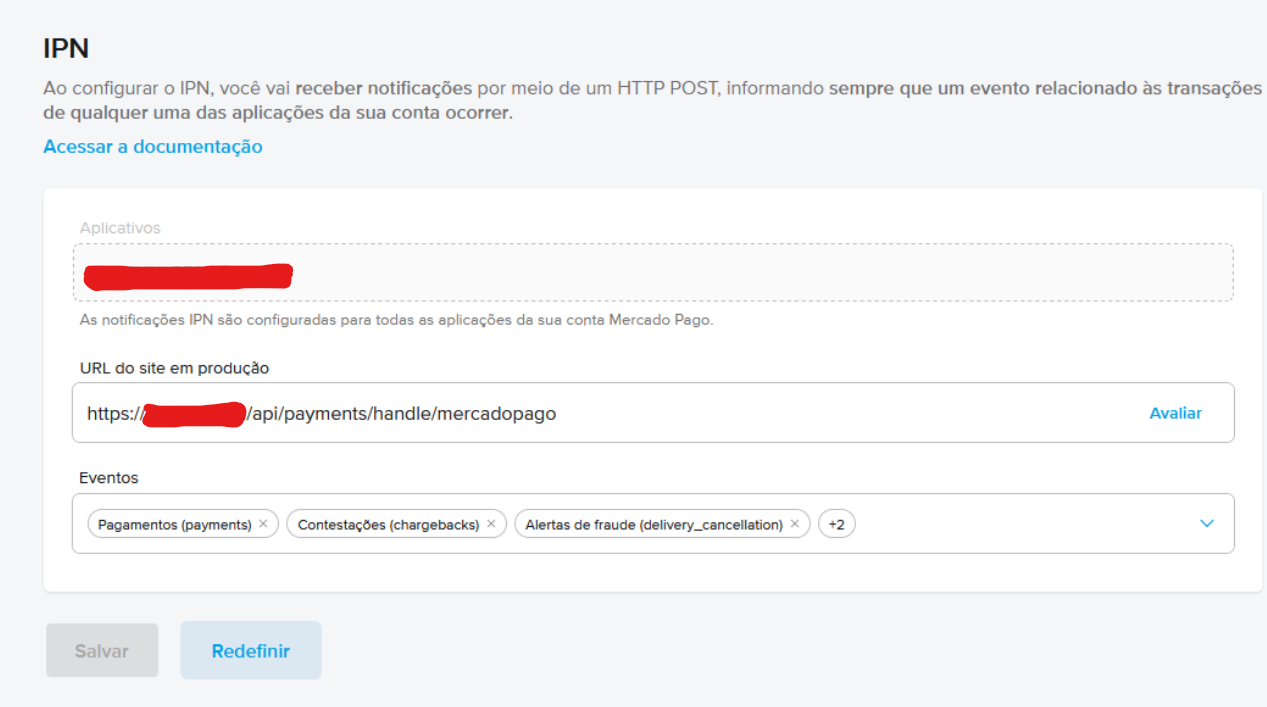
1. Go to Notifications tab in your MercadoPago account.
2. Select the `IPN` tab.
3. Click on `Create IPN`.
4. Enter the `Notification URL` (i.e. `https://v3.minestorecms.com/api/payments/handle/mercadopago`).
5. Select the `All` option for `Events`.
### Step 3: Configure IPN
1. Go to Notifications tab in your MercadoPago account.
2. Select the `IPN` tab.
3. Click on `Create IPN`.
4. Enter the `Notification URL` (i.e. `https://v3.minestorecms.com/api/payments/handle/mercadopago`).
5. Select the `All` option for `Events`.
 ### Step 4: Connect MercadoPago to your webstore
1. Go to your **webstore dashboard**.
2. Click on `Settings > Payment Gateways`.
3. Scroll down to `MercadoPago` and enable it.
4. Enter your `Access Token`.
5. Enter **MercadoPago** merchant currency (i.e. `BRL` for Brazil, `ARS` for Argentina, `CLP` for Chile, `COP` for Colombia, `MXN` for Mexico, `PEN` for Peru, `UYU` for Uruguay, `VEF` for Venezuela, etc.).
6. Press **Save** button.
### Step 4: Connect MercadoPago to your webstore
1. Go to your **webstore dashboard**.
2. Click on `Settings > Payment Gateways`.
3. Scroll down to `MercadoPago` and enable it.
4. Enter your `Access Token`.
5. Enter **MercadoPago** merchant currency (i.e. `BRL` for Brazil, `ARS` for Argentina, `CLP` for Chile, `COP` for Colombia, `MXN` for Mexico, `PEN` for Peru, `UYU` for Uruguay, `VEF` for Venezuela, etc.).
6. Press **Save** button.