> ## Documentation Index
> Fetch the complete documentation index at: https://docs.minestorecms.com/llms.txt
> Use this file to discover all available pages before exploring further.
# Stripe
> Stripe is a popular payment gateway that allows you to accept credit card payments on your webstore.
## How to Configure Stripe?
### Step 1: Getting Stripe API Keys
1. Go to the [Stripe](https://stripe.com/) website.
2. **Sign up for an account** or **log in** if you already have an account.
3. Go to the **Developers > API keys** section.
4. Switch to the **Live mode** if you are ready to accept payments.
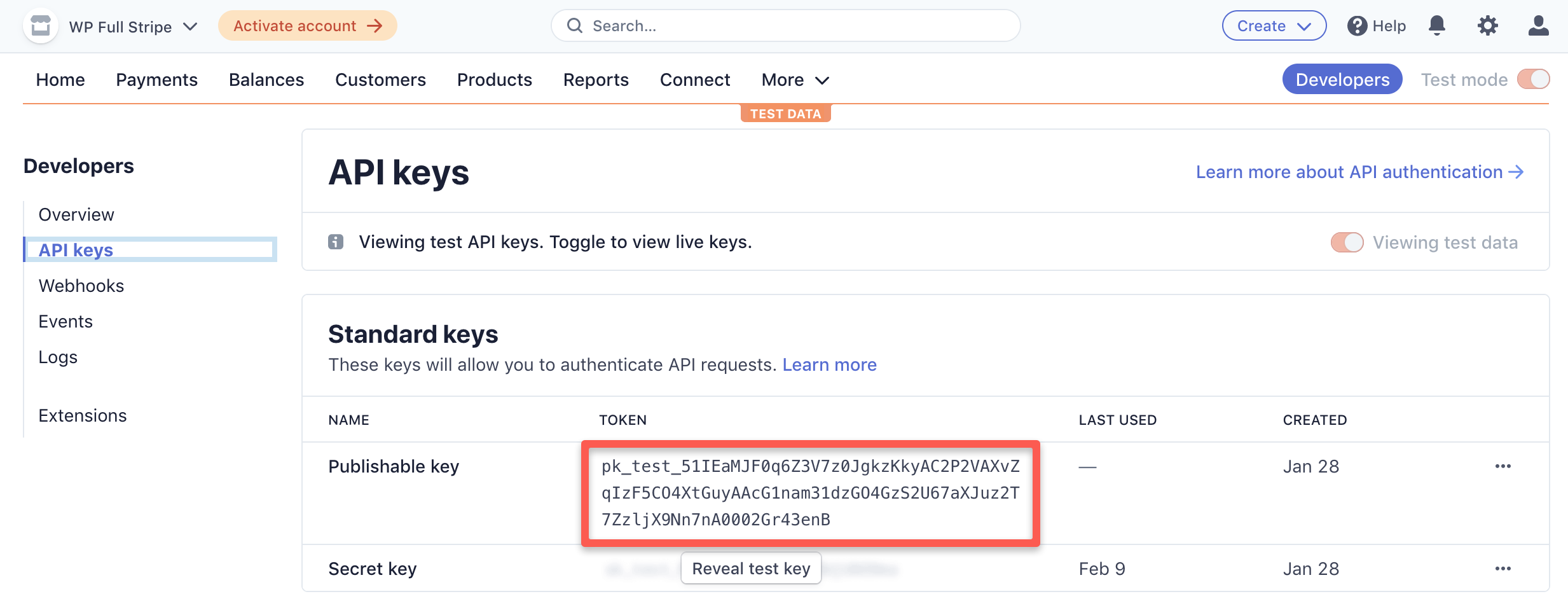
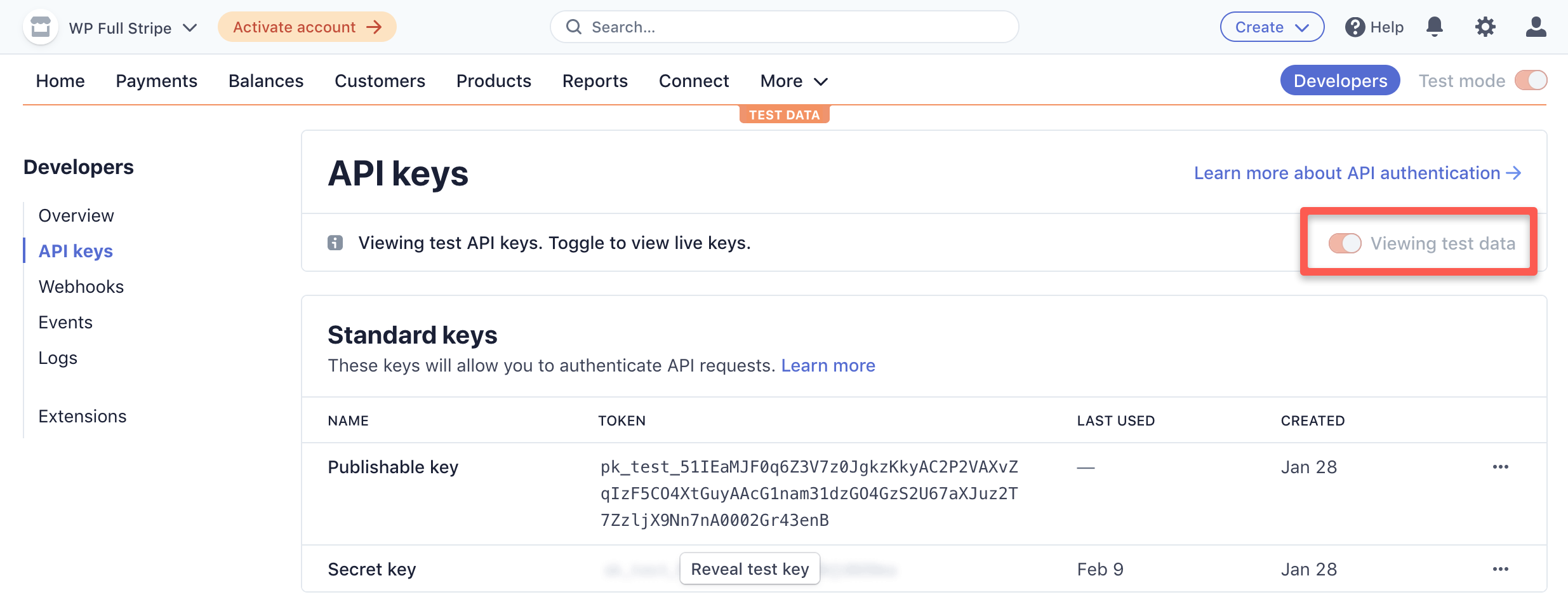 5. Copy the **Publishable key** and **save it**.
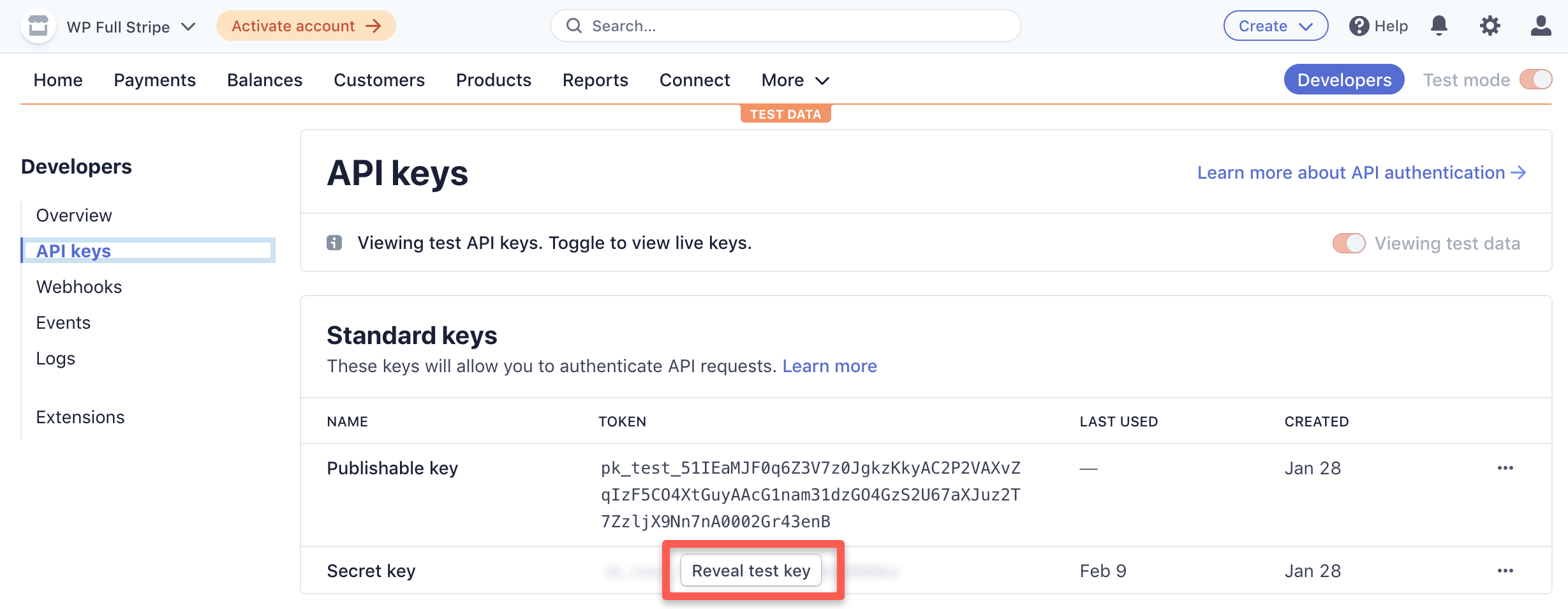
 6. Click on the **Reveal secret key** button to view the **Secret key**.
 ### Step 2: Configuring Stripe Webhook
1. Go to the **Developers > Webhooks** section in the Stripe dashboard.
2. Click on the **Add endpoint** button to create a new webhook.
3. Enter the **endpoint URL** from your webstore dashboard (i.e. `https://v3.minestorecms.com/api/payments/handle/stripe`).
4. Select the **events** next events to send to the webhook:
* `checkout.session.completed`
* `invoice.payment_succeeded`
* `customer.subscription.pending_update_expired`
* `customer.subscription.deleted`
* `invoice.payment_failed`
* `charge.dispute.created`
* `charge.dispute.updated`
* `charge.dispute.closed`
5. Click on the **Add endpoint** button to save the webhook.
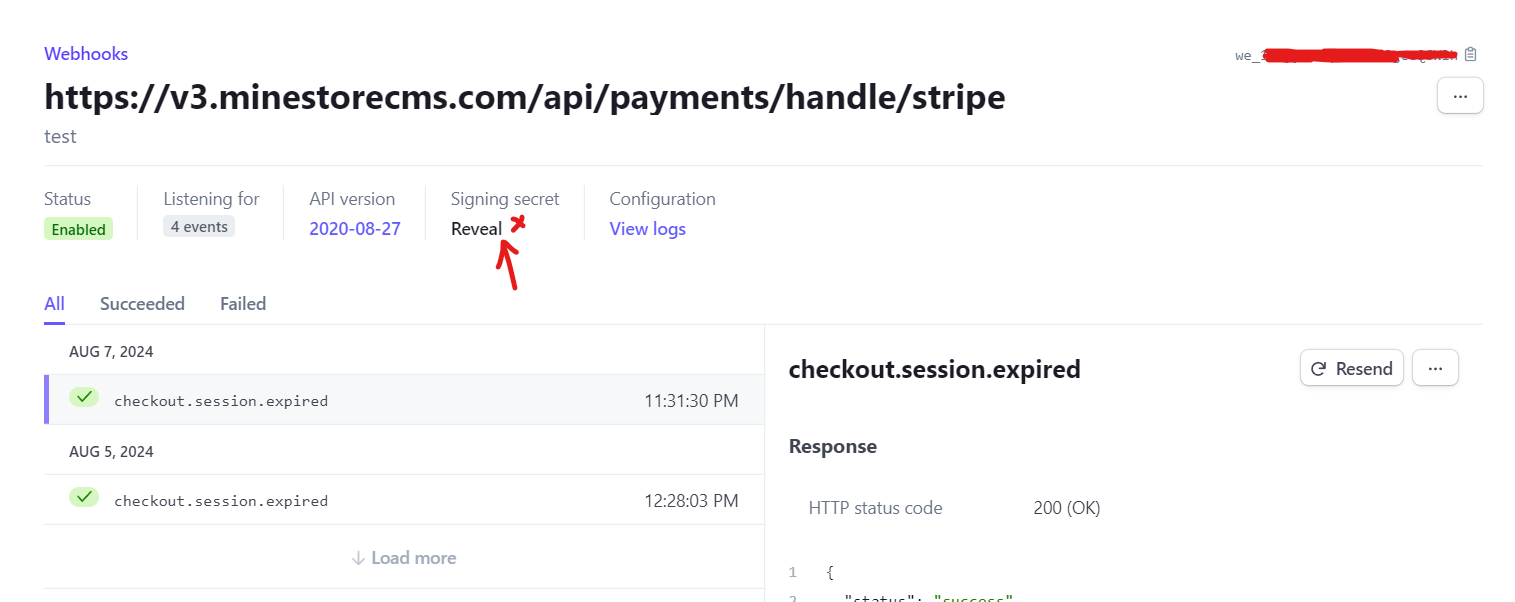
6. Get the **Signing secret** from the webhook settings.
### Step 2: Configuring Stripe Webhook
1. Go to the **Developers > Webhooks** section in the Stripe dashboard.
2. Click on the **Add endpoint** button to create a new webhook.
3. Enter the **endpoint URL** from your webstore dashboard (i.e. `https://v3.minestorecms.com/api/payments/handle/stripe`).
4. Select the **events** next events to send to the webhook:
* `checkout.session.completed`
* `invoice.payment_succeeded`
* `customer.subscription.pending_update_expired`
* `customer.subscription.deleted`
* `invoice.payment_failed`
* `charge.dispute.created`
* `charge.dispute.updated`
* `charge.dispute.closed`
5. Click on the **Add endpoint** button to save the webhook.
6. Get the **Signing secret** from the webhook settings.
 ### Step 3: Enable Stripe Payment Gateway
1. Go to the **Settings > Payment Gateways** tab in the sidebar.
2. Scroll down to the **Stripe** section.
3. **Enable** the **Stripe** option.
4. Enter the **Publishable key** and **Secret key**.
5. Enter the **Webhook Signing secret**.
6. **Save Changes**.
**Stripe** payment gateway requires **SSL certificate** to secure the payment transactions. Make sure you have a valid SSL certificate installed on your webstore.
## Stripe Billing Portal
It is necessary to provide a way for your customers to manage their subscriptions. Stripe provides a **Billing Portal** that allows your customers to update their payment methods, view invoices, and manage their subscriptions.
1. Go to the **Settings > Billing** tab in the sidebar.
2. Select the **"Customer Portal"** option.
3. Configure all required options according to your needs.
4. **Save Changes**.
There are links to configure and customize the **Billing Portal** in the **Stripe Dashboard**.
* **Test Mode**: [https://dashboard.stripe.com/test/settings/billing/portal](https://dashboard.stripe.com/test/settings/billing/portal)
* **Live Mode**: [https://dashboard.stripe.com/settings/billing/portal](https://dashboard.stripe.com/settings/billing/portal)
### Step 3: Enable Stripe Payment Gateway
1. Go to the **Settings > Payment Gateways** tab in the sidebar.
2. Scroll down to the **Stripe** section.
3. **Enable** the **Stripe** option.
4. Enter the **Publishable key** and **Secret key**.
5. Enter the **Webhook Signing secret**.
6. **Save Changes**.
**Stripe** payment gateway requires **SSL certificate** to secure the payment transactions. Make sure you have a valid SSL certificate installed on your webstore.
## Stripe Billing Portal
It is necessary to provide a way for your customers to manage their subscriptions. Stripe provides a **Billing Portal** that allows your customers to update their payment methods, view invoices, and manage their subscriptions.
1. Go to the **Settings > Billing** tab in the sidebar.
2. Select the **"Customer Portal"** option.
3. Configure all required options according to your needs.
4. **Save Changes**.
There are links to configure and customize the **Billing Portal** in the **Stripe Dashboard**.
* **Test Mode**: [https://dashboard.stripe.com/test/settings/billing/portal](https://dashboard.stripe.com/test/settings/billing/portal)
* **Live Mode**: [https://dashboard.stripe.com/settings/billing/portal](https://dashboard.stripe.com/settings/billing/portal)