> ## Documentation Index
> Fetch the complete documentation index at: https://docs.minestorecms.com/llms.txt
> Use this file to discover all available pages before exploring further.
# Onboarding Guide
> Learn how to integrate PayNow Checkout that provides a seamless payment experience for your customers and chargeback protection for your business.
This **integration** is available for **MineStoreCMS** **v3.5** and **above**.
## Introduction
**PayNow Checkout** ensures **Full Chargeback Protection**, safeguarding revenue by managing disputes and eliminating fraud risks, while delivering **Global Tax Compliance** with seamless tax handling and reporting worldwide.
Streamline **Subscription Management** with automated **billing**, **renewals**, and customer plans. Enable **Borderless Payments** with 75+ methods, including **PayPal, Credit Cards, IDeal, MercadoPago, Pix, Debit Cards, Amazon Pay and others**, as they act as your merchant of record for compliant global sales.
Frequently asked questions about PayNow Checkout integration with MineStoreCMS.
## Benefits & Conditions
* **3.99%** Platform Fee + [Payment Gateway Processing Fees](https://paynow.gg/payment-methods).
* **No monthly & setup fees**.
* **PayNow** handles all **chargebacks** and **disputes**.
* **KYC (Know Your Customer)** verification is required.
* **VAT and taxes** are being handled by the **PayNow Checkout**.
## Setup Guide
### Step 1: Create a PayNow Account
1. Go to the [PayNow Website](https://dashboard.paynow.gg/auth/register).
2. Select next option: **"I want to monetize my game server"**, scroll down and press **"Continue"** button.
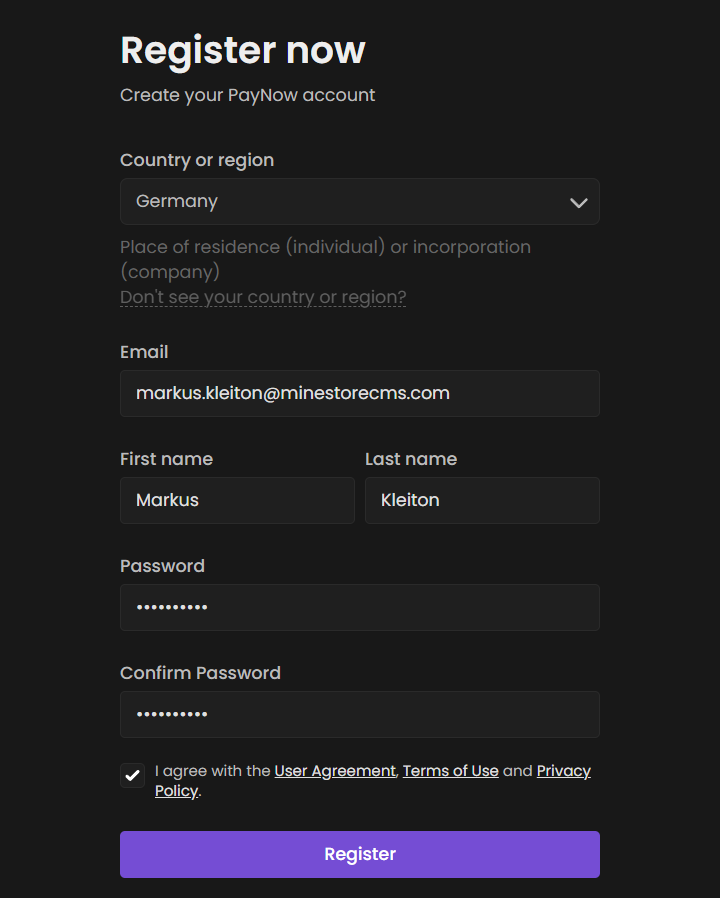
3. Fill in the required information:
* **Country or Region**: Select your country or region.
* **Email**: Enter a valid email address.
* **First Name**: Enter your **real** first name of the person who will be responsible for the account.
* **Last Name**: Enter your **real** last name of the person who will be responsible for the account.
* **Password**: Create a strong password.
* **Confirm Password**: Re-enter the password to confirm.
4. Accept the [User Agreement](https://paynow.gg/user-agreement), [Terms of Use](https://paynow.gg/terms-of-service), and [Privacy Policy](https://paynow.gg/privacy-policy).
5. Click on the **"Register"** button.
 ### Step 2: Verify Your Email
1. Check your email inbox for a **verification email** from **PayNow**.
2. Click on the **"Confirm Email"** button in the email.
3. You will be redirected to the **PayNow** website, where you can log in with your email and password.
4. Enter your **email** and **password** to log in.
**Note**: If you don't see the email in your inbox, check your **spam** or junk folder.
### Step 3: Creating the PayNow Checkout Store
1. After logging in, click on the **"Create Store"** button.
2. Fill in the required information:
* **Name**: Enter a name for your store (i.e. `GrassCraft Network`).
* **Slug**: Enter a unique identifier for your store (i.e. `grasscraft-network`).
* **Currency**: Select the currency for your **Checkout Integration** (i.e. `USD`, `EUR`, `GBP`). **Cannot** be changed later and must be the same as your **MineStoreCMS Primary Currency**.
3. Select the **Platform** as **"Minecraft (Offline)"** (screenshot below).
4. Select the **Integration Type** as **"Third-Party Integration"** (screenshot below).
5. Select the **Second Integration Type** as **"MineStoreCMS (Third-Party)"** (screenshot below).
6. Enter your **MineStoreCMS Store URL** (i.e. `https://store.grasscraft.net`) (screenshot below).
7. Enter **Support & Contact Email**. Could be personal or business email.
### Step 4: Setup Payouts
### Step 2: Verify Your Email
1. Check your email inbox for a **verification email** from **PayNow**.
2. Click on the **"Confirm Email"** button in the email.
3. You will be redirected to the **PayNow** website, where you can log in with your email and password.
4. Enter your **email** and **password** to log in.
**Note**: If you don't see the email in your inbox, check your **spam** or junk folder.
### Step 3: Creating the PayNow Checkout Store
1. After logging in, click on the **"Create Store"** button.
2. Fill in the required information:
* **Name**: Enter a name for your store (i.e. `GrassCraft Network`).
* **Slug**: Enter a unique identifier for your store (i.e. `grasscraft-network`).
* **Currency**: Select the currency for your **Checkout Integration** (i.e. `USD`, `EUR`, `GBP`). **Cannot** be changed later and must be the same as your **MineStoreCMS Primary Currency**.
3. Select the **Platform** as **"Minecraft (Offline)"** (screenshot below).
4. Select the **Integration Type** as **"Third-Party Integration"** (screenshot below).
5. Select the **Second Integration Type** as **"MineStoreCMS (Third-Party)"** (screenshot below).
6. Enter your **MineStoreCMS Store URL** (i.e. `https://store.grasscraft.net`) (screenshot below).
7. Enter **Support & Contact Email**. Could be personal or business email.
### Step 4: Setup Payouts
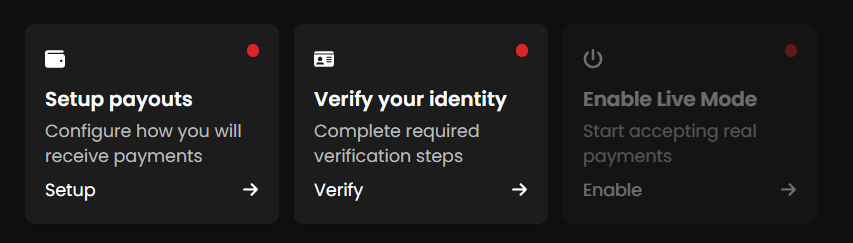 To withdraw money from your **PayNow Wallet**, you need to set up your **Payouts**. This is where you will enter your preferred payout method, such as **PayPal** or **Bank Transfer** and fill in small **tax form**.
You might need:
* **Payout Information**: Bank account details or PayPal email for receiving payments.
* **Tax Information**: Tax ID or relevant tax documentation.
After you got what you need, follow these steps:
1. Click on the **"Setup Payouts"** tab in the **Top Navigation Bar**.
2. Press on yellow **"Setup Payouts"** button.
3. Follow the instructions to **set up your payout method**.
**IMPORTANT**: Enter your **real** data of the person who will be responsible for the account and receiving funds. This is important for **KYC** verification and to avoid any issues with your payouts!
**Note**: You will not be able to use **PayNow Checkout** until you complete all onboarding steps, including setting up your **Payouts**.
### Step 5: Complete KYC Verification
**IMPORTANT**: The **legal entity** of the person who will be responsible for the account and receiving funds must be the same as the one used in **Payouts** setup!
To comply with **KYC** (Know Your Customer) regulations, you need to verify your identity. This is a standard procedure for all payment processors.
1. Click on the **"Verify Your Identity"** tab in the **Top Navigation Bar**.
2. Follow the instructions to **complete your KYC verification**.
3. You will need to provide:
* **Proof of Identity**: A government-issued ID (passport, driver's license, etc.).
* **Proof of Address**: A utility bill or bank statement with your name and address.
* **Selfie**: A selfie with your ID to verify your identity.
4. Click on the **"Submit"** button to send your verification request.
**Note**: The verification process may take some time. You will receive an email notification once your account is verified.
**IMPORTANT**: You will not be able to use **PayNow Checkout** until you complete all onboarding steps, including KYC verification.
### Step 6: Receive Your API Keys
1. Get back on [PayNow Onboarding Page](https://dashboard.paynow.gg/onboarding).
2. Copy your **Store ID** (i.e. `1237457373828282`) and save it for later.
3. Press **"Generate API Key"** button.
4. Copy your **API Key** (i.e. `pnapi_v1_1234567890abcdef`) and save it for later.
To withdraw money from your **PayNow Wallet**, you need to set up your **Payouts**. This is where you will enter your preferred payout method, such as **PayPal** or **Bank Transfer** and fill in small **tax form**.
You might need:
* **Payout Information**: Bank account details or PayPal email for receiving payments.
* **Tax Information**: Tax ID or relevant tax documentation.
After you got what you need, follow these steps:
1. Click on the **"Setup Payouts"** tab in the **Top Navigation Bar**.
2. Press on yellow **"Setup Payouts"** button.
3. Follow the instructions to **set up your payout method**.
**IMPORTANT**: Enter your **real** data of the person who will be responsible for the account and receiving funds. This is important for **KYC** verification and to avoid any issues with your payouts!
**Note**: You will not be able to use **PayNow Checkout** until you complete all onboarding steps, including setting up your **Payouts**.
### Step 5: Complete KYC Verification
**IMPORTANT**: The **legal entity** of the person who will be responsible for the account and receiving funds must be the same as the one used in **Payouts** setup!
To comply with **KYC** (Know Your Customer) regulations, you need to verify your identity. This is a standard procedure for all payment processors.
1. Click on the **"Verify Your Identity"** tab in the **Top Navigation Bar**.
2. Follow the instructions to **complete your KYC verification**.
3. You will need to provide:
* **Proof of Identity**: A government-issued ID (passport, driver's license, etc.).
* **Proof of Address**: A utility bill or bank statement with your name and address.
* **Selfie**: A selfie with your ID to verify your identity.
4. Click on the **"Submit"** button to send your verification request.
**Note**: The verification process may take some time. You will receive an email notification once your account is verified.
**IMPORTANT**: You will not be able to use **PayNow Checkout** until you complete all onboarding steps, including KYC verification.
### Step 6: Receive Your API Keys
1. Get back on [PayNow Onboarding Page](https://dashboard.paynow.gg/onboarding).
2. Copy your **Store ID** (i.e. `1237457373828282`) and save it for later.
3. Press **"Generate API Key"** button.
4. Copy your **API Key** (i.e. `pnapi_v1_1234567890abcdef`) and save it for later.
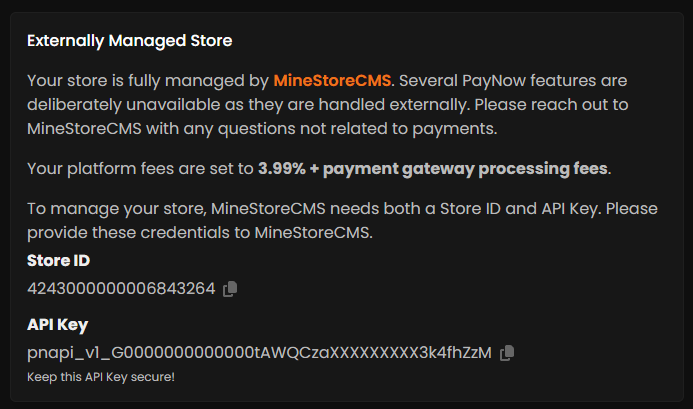 **IMPORTANT**: Your **API Key** is sensitive information. Do not share it with anyone or expose it in public repositories.
### Step 7: Setup PayNow in MineStoreCMS
1. Go to your **MineStoreCMS PayNow Checkout Onboarding Page**. (Can be found at `Settings > Payment Gateways > PayNow Checkout > Configure`).
2. Go to the **"Complete Integration"** Onboarding Tab.
3. Paste your **Store ID** and **API Key** from the previous step.
4. Click on the **"Complete Setup"** button.
**IMPORTANT**: Your **API Key** is sensitive information. Do not share it with anyone or expose it in public repositories.
### Step 7: Setup PayNow in MineStoreCMS
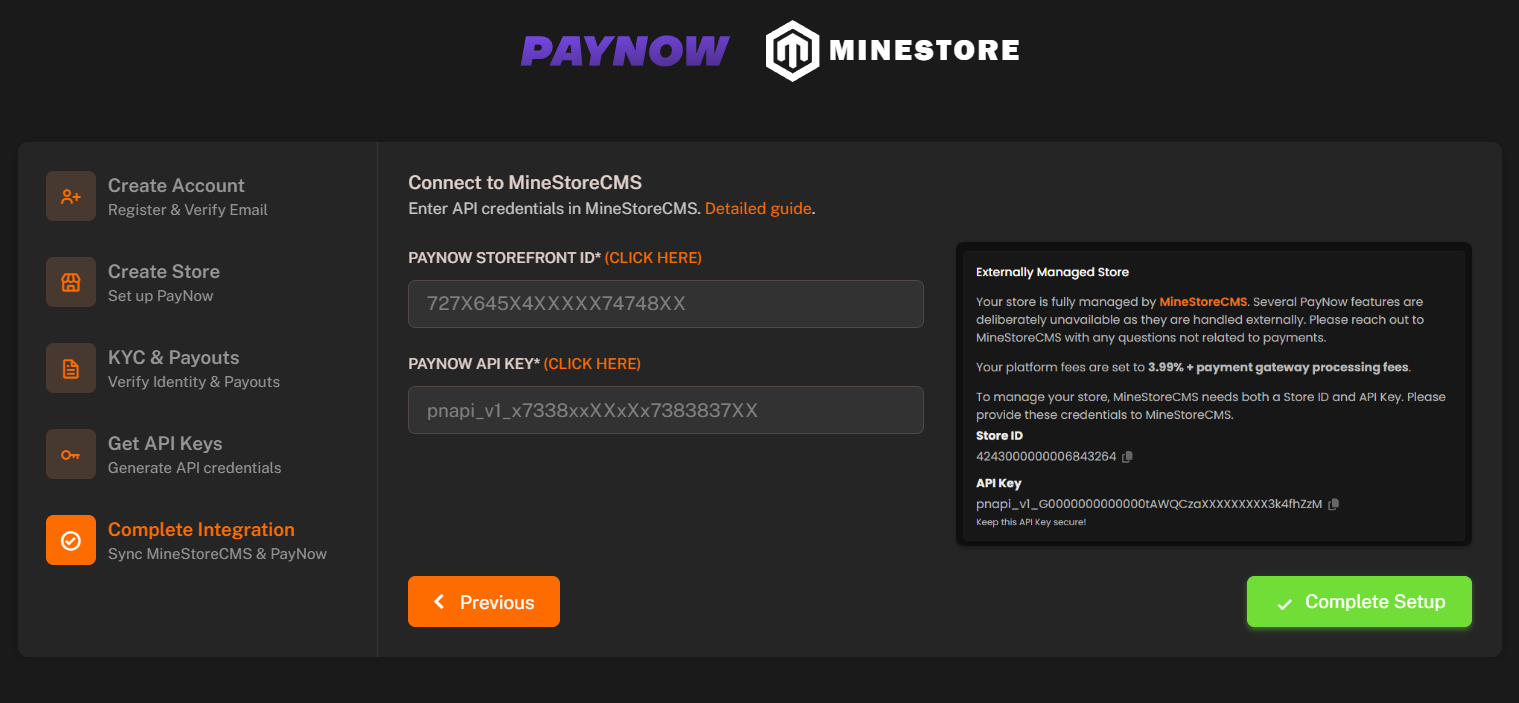
1. Go to your **MineStoreCMS PayNow Checkout Onboarding Page**. (Can be found at `Settings > Payment Gateways > PayNow Checkout > Configure`).
2. Go to the **"Complete Integration"** Onboarding Tab.
3. Paste your **Store ID** and **API Key** from the previous step.
4. Click on the **"Complete Setup"** button.
 **Done!** You have successfully set up **PayNow Checkout** with **MineStoreCMS**.
## Post-Setup Steps
You might **refresh** the **PayNow Checkout Management** page after 5-10 minutes to see the **integration status** and notifications.
After the setup is **complete**, you will get redirected to the **PayNow Checkout Management** page, where you can manage your store settings, see the integration status and notifications.
After you complete the setup, **MineStoreCMS** Webstore & **PayNow** will start syncing automatically every 5 minutes.
It will sync:
* **Settings**: Your **PayNow Checkout** settings will be synced with **MineStoreCMS**.
* **Packages**: Your **MineStoreCMS** packages will be synced with **PayNow Checkout**.
* **VAT**: Your **MineStoreCMS** VAT settings will be synced with **PayNow Checkout**.
* **Other**: Other settings and configurations will be synced as well.
**Note**: You can check the sync status and logs in the **PayNow Checkout Management** page.
## Manual Syncing
**IMPORTANT**: You should not need to do this manually, as it is done automatically every 5 minutes. However, if you encounter any issues with the synchronization, you can run these commands to force a manual sync.
You can also manually sync your **PayNow** settings and transactions with **MineStoreCMS** by using the following command:
```bash theme={null}
cd /var/www/minestore
php artisan paynow:sync-settings
php artisan paynow:sync
php artisan paynow:parse-logs
```
You should also check if the **required services** are running by using the **following command**:
```bash theme={null}
service minestore_schedule status
service minestore_queue status
```
If the **services are running**, you should see a message indicating that they are **active**. If they are not running, you can start them using the **following command**:
```bash theme={null}
service minestore_schedule restart
service minestore_queue restart
```
**Done!** You have successfully set up **PayNow Checkout** with **MineStoreCMS**.
## Post-Setup Steps
You might **refresh** the **PayNow Checkout Management** page after 5-10 minutes to see the **integration status** and notifications.
After the setup is **complete**, you will get redirected to the **PayNow Checkout Management** page, where you can manage your store settings, see the integration status and notifications.
After you complete the setup, **MineStoreCMS** Webstore & **PayNow** will start syncing automatically every 5 minutes.
It will sync:
* **Settings**: Your **PayNow Checkout** settings will be synced with **MineStoreCMS**.
* **Packages**: Your **MineStoreCMS** packages will be synced with **PayNow Checkout**.
* **VAT**: Your **MineStoreCMS** VAT settings will be synced with **PayNow Checkout**.
* **Other**: Other settings and configurations will be synced as well.
**Note**: You can check the sync status and logs in the **PayNow Checkout Management** page.
## Manual Syncing
**IMPORTANT**: You should not need to do this manually, as it is done automatically every 5 minutes. However, if you encounter any issues with the synchronization, you can run these commands to force a manual sync.
You can also manually sync your **PayNow** settings and transactions with **MineStoreCMS** by using the following command:
```bash theme={null}
cd /var/www/minestore
php artisan paynow:sync-settings
php artisan paynow:sync
php artisan paynow:parse-logs
```
You should also check if the **required services** are running by using the **following command**:
```bash theme={null}
service minestore_schedule status
service minestore_queue status
```
If the **services are running**, you should see a message indicating that they are **active**. If they are not running, you can start them using the **following command**:
```bash theme={null}
service minestore_schedule restart
service minestore_queue restart
```