> ## Documentation Index
> Fetch the complete documentation index at: https://docs.minestorecms.com/llms.txt
> Use this file to discover all available pages before exploring further.
# Discord Settings
> Manage your Discord settings to integrate your webstore with Discord.
## Introduction
The **Discord Settings** section allows you to manage your Discord settings to integrate your webstore with Discord.
You can configure the **Discord settings** to enable Discord **notifications for purchases** and display the **information about Discord Server** on your webstore.
**MineStoreCMS** supports Discord **Webhooks** to send notifications to your Discord server. You need to have a Discord server and the required permissions to set up Discord Webhooks.
## How to Access Discord Settings?
Log in to your **Admin Panel**.
Go to the **Settings** section in the sidebar menu and click on **"Discord Settings"**.
## Discord Settings Overview
1. **Discord Webhook URL**: Enter the **Discord Webhook URL** to send notifications to your Discord server. You can create a new Webhook in your Discord server settings and copy the Webhook URL to paste it here.
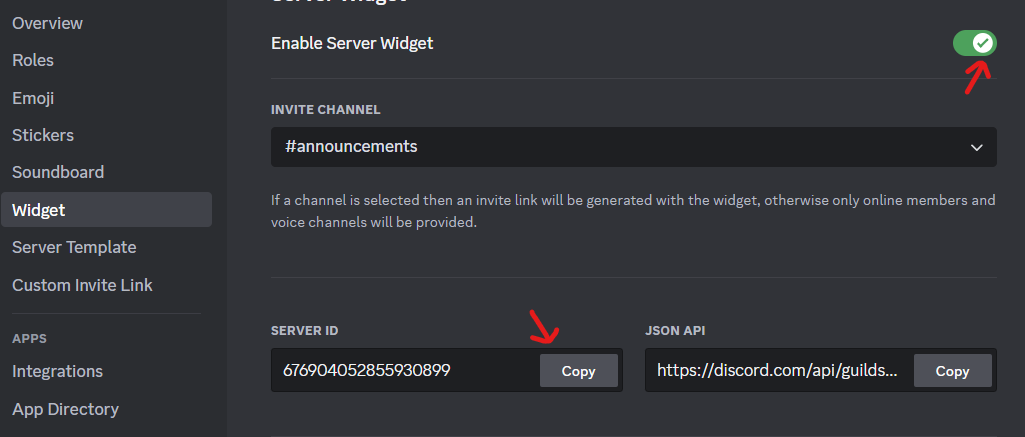
2. **Server ID**: Enter the **Discord Server ID** to display the information about your Discord server on the webstore. You can get the Server ID from your Discord server settings.
3. **Discord Invite Link**: Enter the **Discord Invite Link** to allow customers to join your Discord server directly from the webstore.
### How to Create a Discord Webhook?
1. Open your Discord server.
2. Right-click on the channel where you want to send notifications.
3. Click on **"Edit Channel"**.
4. Navigate to the **"Integrations"** tab.
5. Click on **"Create Webhook"**.
6. Enter the **Webhook Name** and **Avatar**.
7. Copy the **Webhook URL** and paste it in the **Discord Webhook URL** field in the Admin Panel.
8. Press **"Save"** to apply the changes.
### How to Get Discord Server ID?
1. Open your Discord server.
2. Right-click on the server name.
3. Click on **"Copy ID"** to copy the Server ID.
4. Paste the Server ID in the **Server ID** field in the Admin Panel.
5. Press **"Save"** to apply the changes.
 ## How to Sync Discord Roles?
You can sync your Discord server roles with the webstore to manage roles and permissions. You need to set up the **Discord Bot** and **Discord Settings** to sync roles.
Learn how to set up the Discord Bot to sync roles and permissions with your webstore.
## How to Sync Discord Roles?
You can sync your Discord server roles with the webstore to manage roles and permissions. You need to set up the **Discord Bot** and **Discord Settings** to sync roles.
Learn how to set up the Discord Bot to sync roles and permissions with your webstore.