> ## Documentation Index
> Fetch the complete documentation index at: https://docs.minestorecms.com/llms.txt
> Use this file to discover all available pages before exploring further.
# File Manager
> You can easily edit the theme files and upload new files using the File Manager.
## Introduction
You can easily edit the theme files and upload new files using the **File Manager**. The File Manager allows you to edit the HTML, CSS, JavaScript, and TypeScript files of your theme.
## File Manager
### Editing Theme Files
To access the **File Manager**:
Log in to your **Admin Panel**.
Navigate to the **Themes** tab and select the theme you want to edit.
Click on the **Theme File Manager** button to open the File Manager.
You can edit the theme files directly using the File Manager.
Press **Save File** to apply the changes for edited file.
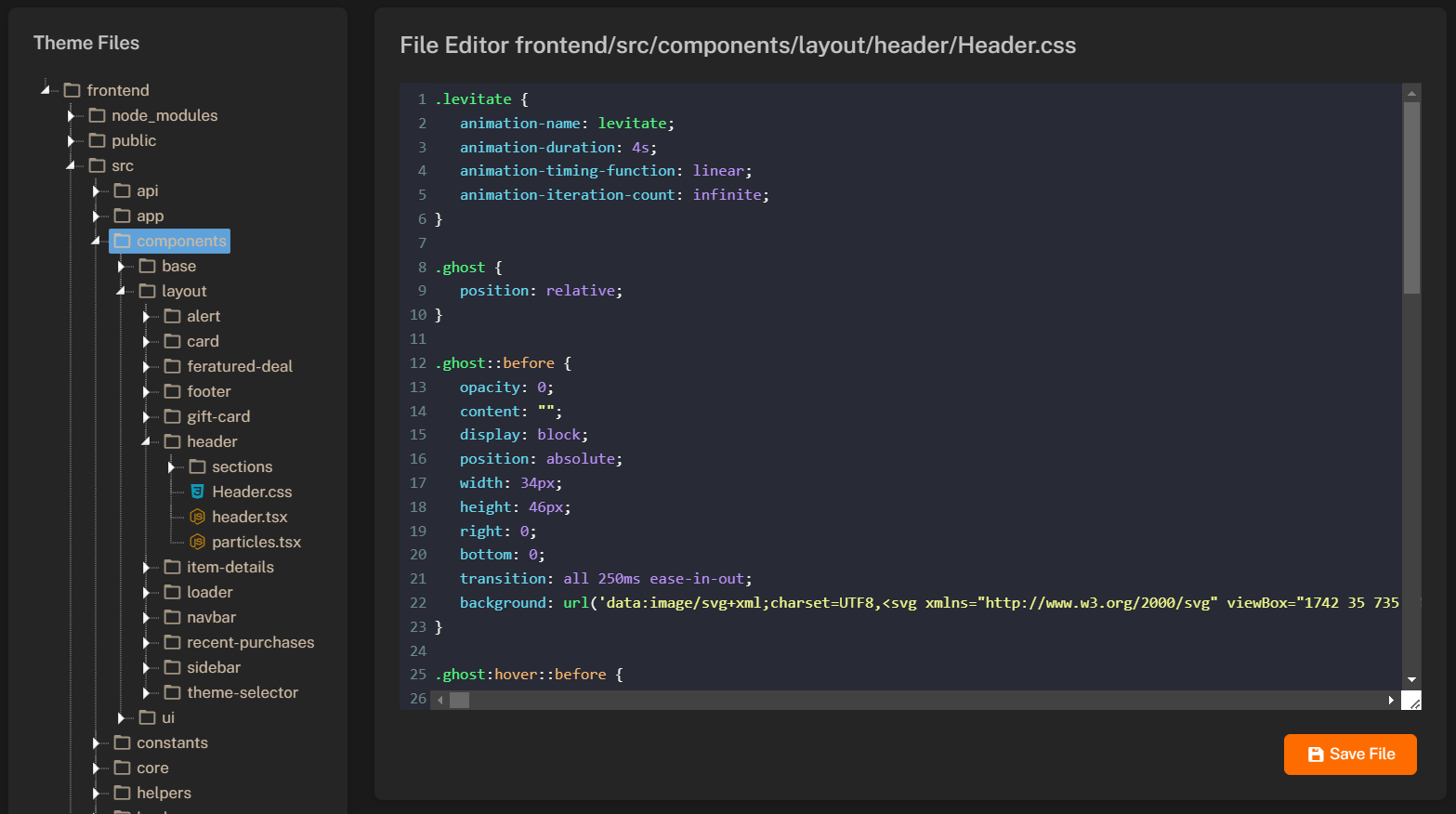 The File Manager allows you to edit the theme files directly. Make sure to back up your files before making any changes.
### Uploading Files
You can also upload new files or overwrite existing files using the File Manager. To upload a file:
1. Select the **file** or **folder** where you want to upload the file.
2. Press **Right Click** and select **Upload file**.
3. Choose the file you want to upload and press **Upload**.
You can only upload files with following extensions: `png, jpg, jpeg, gif, svg, webp, css, scss, js, ts, tsx, html, json`.
The File Manager allows you to edit the theme files directly. Make sure to back up your files before making any changes.
### Uploading Files
You can also upload new files or overwrite existing files using the File Manager. To upload a file:
1. Select the **file** or **folder** where you want to upload the file.
2. Press **Right Click** and select **Upload file**.
3. Choose the file you want to upload and press **Upload**.
You can only upload files with following extensions: `png, jpg, jpeg, gif, svg, webp, css, scss, js, ts, tsx, html, json`.