> ## Documentation Index
> Fetch the complete documentation index at: https://docs.minestorecms.com/llms.txt
> Use this file to discover all available pages before exploring further.
# Variables
> Variables are used to attach dynamic data to your packages. You can allow your customers to customize their packages by setting up variables like player name, color, or size.
## **What are Variables?**
The **variable feature** allows you to request **custom information from the customer**. For example, you can ask which prefix the customer wants for their VIP rank. To do this, configure the `{custom_prefix}` variable and add it to the command for execution. We'll guide you through using variables to set up the `{custom_prefix}` option.
## **Creating Variable**
To create a **new variable**, follow the steps below:
Navigate to the **Admin Panel** of your webstore.
Click on the **Variables** tab to access the variable management area.
Press the **+ Create a Variable** button.
Complete the following fields:
* **Name**: Enter the name of the variable (e.g., `Custom Prefix`).
* **Description**: Add a description of the variable (optional).
* **Variable Identifier**: Specify the variable identifier (e.g., `custom_prefix`).
* **Variable Type**: Choose the type of variable (e.g., `Input Text`, `Input Digit`, or `Dropdown`).
Press the **Save** button to create the new variable.
## **Dropdown Variable**
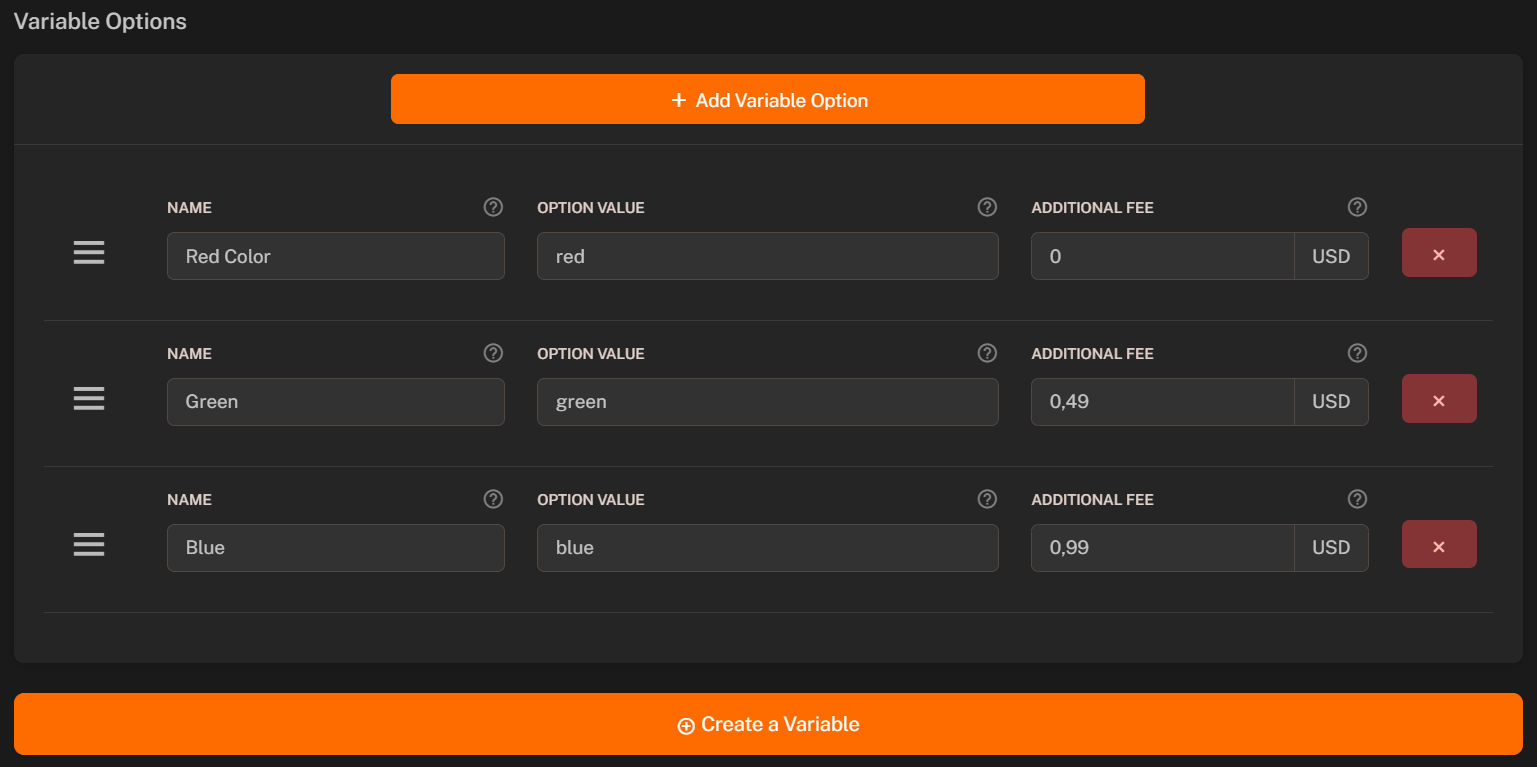
In case if you want to create a dropdown variable, you also need to add options to the variable. Here's how you can do it:
1. Scroll down to the **Variable Options** section after selecting the `Dropdown` variable type.
2. Press the **+ Add Variable Option** button.
3. Fill in the **Option Name** field with the name of the option that will be displayed to the customer (e.g., `Red`).
4. Fill in the **Option Value** field with the value that will be used in the command (e.g., `red`).
5. Fill in the **Additional Fee** field with the price that will be added to the package price if the customer selects this option (optional, can be empty).
 ## **Using Variables in Packages**
After creating the variable, you can add it to your **package's command**. You just simply need to add the variable identifier to the command.
Here's an example of how you can use the `{custom_prefix}` variable in a package command:
```bash theme={null}
lp user {username} set prefix {custom_prefix} {group}
```
## **Using Variables in Packages**
After creating the variable, you can add it to your **package's command**. You just simply need to add the variable identifier to the command.
Here's an example of how you can use the `{custom_prefix}` variable in a package command:
```bash theme={null}
lp user {username} set prefix {custom_prefix} {group}
```