> ## Documentation Index
> Fetch the complete documentation index at: https://docs.minestorecms.com/llms.txt
> Use this file to discover all available pages before exploring further.
# Installation
> MineStoreCMS provides an easy-to-use installer that allows you to install webstore on your server with a few simple commands.
## **Introduction**
To install **MineStoreCMS** on your server, follow the steps below. Before you begin, ensure that your server meets the [requirements](/installation/requirements).
Prefer a containerized stack or planning to run **multiple stores on one VPS**? See the [Docker installation guide](/installation/docker) as an alternative to the bare-metal installer described on this page.
**Recommended software** for connecting to your server and installing MineStoreCMS:
1. **[MobaXterm](https://mobaxterm.mobatek.net/download.html)** (Windows) / **[Terminal](https://support.apple.com/guide/terminal/welcome/mac)** (macOS)
2. **Notepad++** (Windows) / **[Visual Studio Code](https://code.visualstudio.com/download)** (Windows, macOS, Linux)
## **Connect to Your VPS Server**
You'll need to connect to your VPS server via **SSH**. If you're unfamiliar with the process, follow these steps:
1. Open **MobaXterm** or **Terminal**.
2. Click on the **"Session"** button located in the top left corner of the MobaXterm window.
3. Click on the **"SSH"** button.
4. Enter your server **IP address** in the **"Remote host"** field.
5. Enter your server **username** in the **"Username"** field.
6. Click on the **"OK"** button.
7. Enter your server **password** when prompted.
8. You are now connected to your server via **SSH**.
## **Installation Steps**
To install **MineStoreCMS** on your VPS, simply run the following command in your terminal:
```bash theme={null}
bash <(curl -s https://minestorecms.com/installer.sh)
```
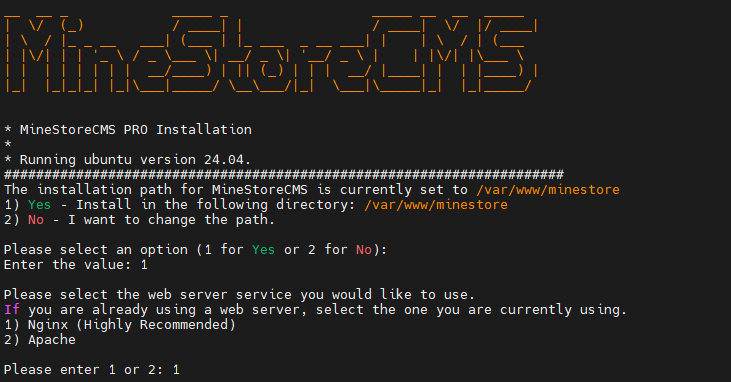
The installer will guide you through the process. You will be asked to enter your **license key**, **domain name**, and other necessary details during the installation.
 ## **Post-Installation Steps**
After the installation is complete, you need to fully restart your VPS server. You can do this by running the following command in your terminal:
```bash theme={null}
reboot
```
## **Alternative: Docker Install**
If you prefer a **containerized stack**, want to **run multiple stores on one VPS**, or run **Podman** instead of Docker, use the Docker install path. The image is OCI-compliant and the installer auto-detects the runtime.
Install MineStoreCMS as a container with an interactive wizard, a `minestore` CLI for day-2 ops, and a reverse-proxy generator for Caddy / Nginx / Apache2.
## **Next Steps**
Configure your webstore by following the steps in the documentation after installation.
Install the required plugin to connect your Minecraft server with MineStoreCMS or use RCON.
## **Post-Installation Steps**
After the installation is complete, you need to fully restart your VPS server. You can do this by running the following command in your terminal:
```bash theme={null}
reboot
```
## **Alternative: Docker Install**
If you prefer a **containerized stack**, want to **run multiple stores on one VPS**, or run **Podman** instead of Docker, use the Docker install path. The image is OCI-compliant and the installer auto-detects the runtime.
Install MineStoreCMS as a container with an interactive wizard, a `minestore` CLI for day-2 ops, and a reverse-proxy generator for Caddy / Nginx / Apache2.
## **Next Steps**
Configure your webstore by following the steps in the documentation after installation.
Install the required plugin to connect your Minecraft server with MineStoreCMS or use RCON.