> ## Documentation Index
> Fetch the complete documentation index at: https://docs.minestorecms.com/llms.txt
> Use this file to discover all available pages before exploring further.
# Adding Minecraft Server
> Learn how to connect your Minecraft servers to MineStoreCMS.
Download the official MineStoreCMS plugin for your Minecraft server.
## **Introduction**
**MineStoreCMS** need to connect to your Minecraft server to execute commands and get information about the server. To connect your Minecraft server to MineStoreCMS, you need to install the **MineStoreCMS plugin** on your Minecraft server.
## **How to add Minecraft Server?**
1. **Login to your Admin Panel**: Go to your MineStoreCMS Admin Panel and login with your credentials.
2. **Navigate to Minecraft Servers Tab**: Follow the path `Settings > Minecraft Servers`.
3. **Add New Minecraft Server**: Click on the `Add a New Server` button.
4. **Select Delivery Method**: Choose the delivery method for your server. You can choose between **Plugin (recommended)** or **RCON**.
## **Plugin Delivery Method (Recommended)**
1. **Server Name**: Enter the name of your server.
2. **Server Secret Token**: Generate a secret token for your server. This token will be used to authenticate your server with MineStoreCMS.
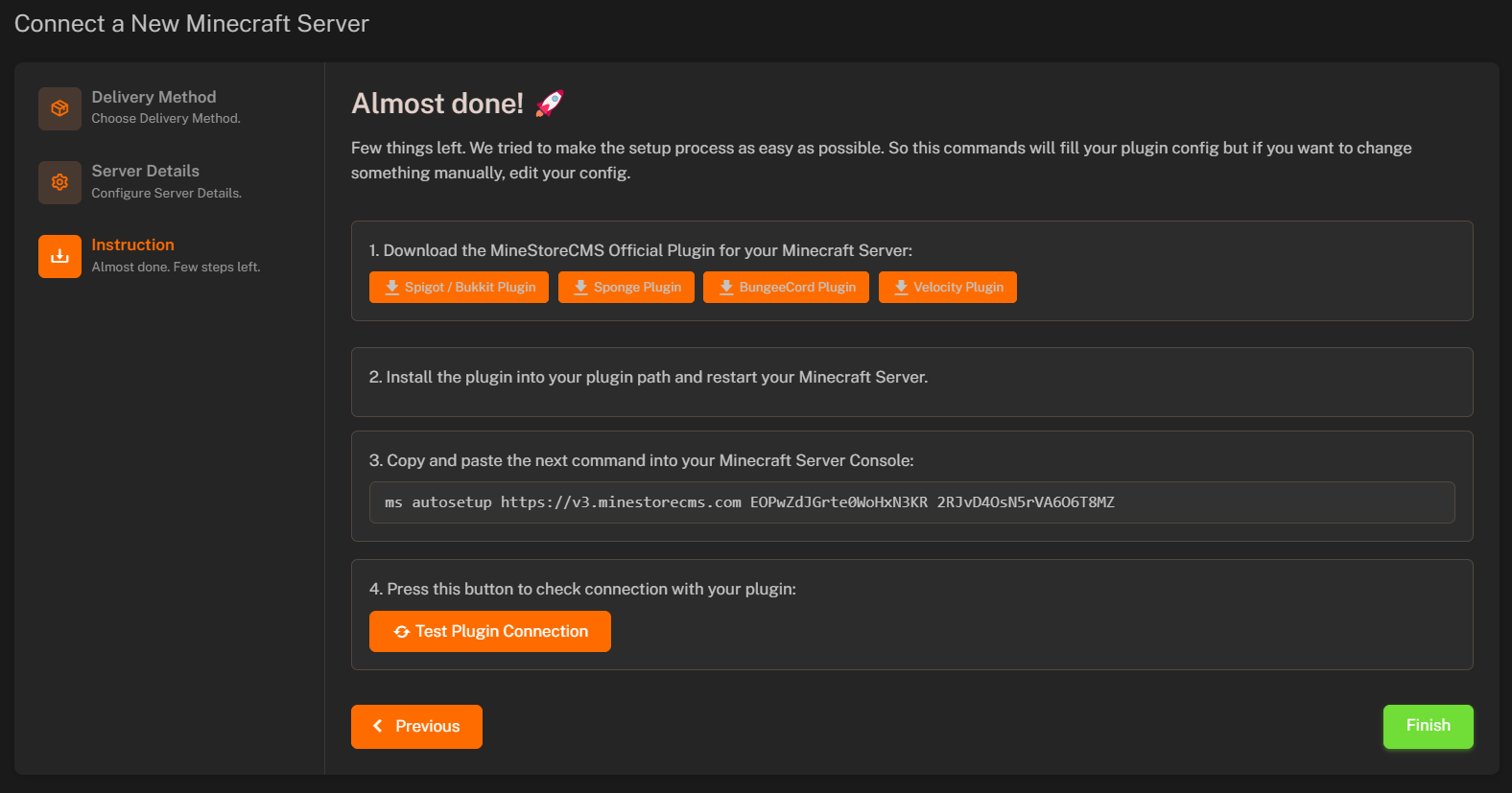
3. **Install Plugin**: Download the official MineStoreCMS plugin and install it on your Minecraft server.
4. **Webstore & Server Connection**: Press **"Next"** to receive command instructions to run on your Minecraft server.
5. **Execute Commands**: Run the commands on your Minecraft server console to connect your server with MineStoreCMS.
6. **Verify Connection**: Press **"Test Plugin Connection"** button to check if your server is connected successfully.
If you use Cloudflare and facing `API Key is invalid` issue, you need add a new rule in your Cloudflare account. Follow the [guide to resolve the issue](https://minestorecms.com/docs/faq#cloudflare-api-key-invalid)
 ## **RCON Delivery Method**
1. **Server Name**: Enter the name of your server.
2. **RCON Host IP**: Enter the IPv4 address of your Minecraft server.
3. **RCON Port**: Enter the RCON port of your Minecraft server.
4. **RCON Password**: Enter the RCON password of your Minecraft server.
5. **Webstore & Server Connection**: Press **"Next"** to receive command instructions to run on your Minecraft server.
## **RCON Delivery Method**
1. **Server Name**: Enter the name of your server.
2. **RCON Host IP**: Enter the IPv4 address of your Minecraft server.
3. **RCON Port**: Enter the RCON port of your Minecraft server.
4. **RCON Password**: Enter the RCON password of your Minecraft server.
5. **Webstore & Server Connection**: Press **"Next"** to receive command instructions to run on your Minecraft server.